

How to play Paul the Party DJ’s Quiztastical Big Night in
How to play the quiz may seem complicated, it’s really not. Once you’ve played it will all be there for you for future quizzes.
It’s easy and fun. You don’t have to worry about checking answers or adding up, it’s all done for you. There’s no pens and paper unless you want to make notes. You’ll need two devices to play, let me explain how it works.
How to play – Device 1 – Zoom
Zoom is one of the big hits of Lockdown, it seems to have become the market leader for video conferencing. You’ll be using Zoom to join the quiz and see me (your host), the game questions and graphics. Ideally, you’ll have Zoom on a computer or large tablet device. CLICK HERE TO GO TO ZOOM.
When it comes to playing the quiz you’ll be given a Zoom link – click on it and it should take you to the quiz.
How to play – Device 2 – SpeedQuizzing Live App
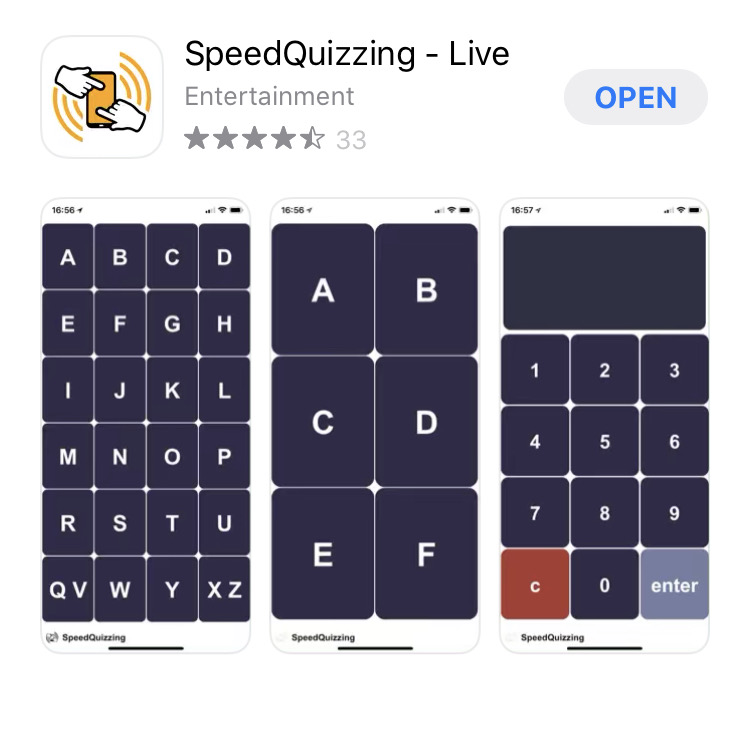
Your second device becomes your quiz handset where you answer the questions. This can be a smartphone or tablet. You’ll need the SpeedQuizzing Live App from your App Store, Google Play or your android place. It’s free and downloads in seconds. In the Apple App Store, it looks like this…
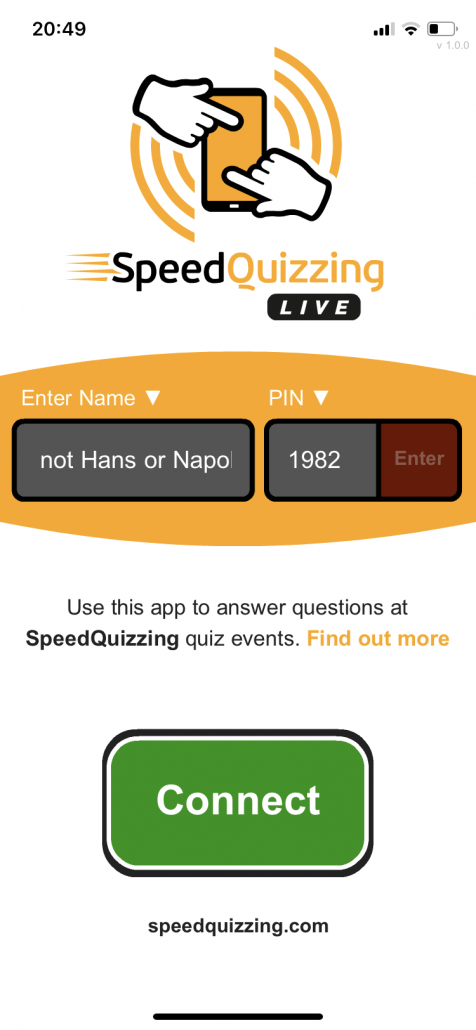
When you open the SpeedQuizzing Live app you’ll be asked to “enter name” – that’ll be your Quiz Team Name so be as inventive as you like (but not too rude please, there may be little ones playing along).
Then you’ll need to enter the game PIN. This will be given to you earlier in the day or when you enter the Zoom Room. Press enter and then Connect. This will take you to a holding screen with simple instructions until the game starts.
How to play – Paul’s Quiz
Once the game starts there are four different ways to answer. There are letter answers, number answers, multiple-choice answers and sequence (arrange in order) answers. I will explain as we go. This is what the four answer screens will look like.
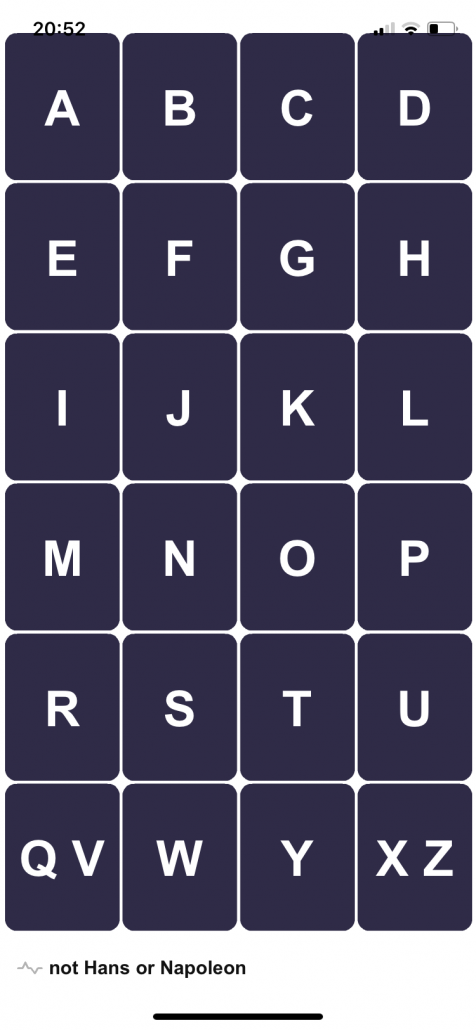
This is the screen you will see for a letters question. You simply have to enter the first letter of the first word. If the answer begins with “The” or “A” ( for example “The Beatles” or “A Place In The Sun”) ignore the “The” or “A” (so your answer would be B for “Beatles” or P for “Place In The Sun”).
Note: the Q is out of order (with the V) and the X is out of order (with the Z).

This is the screen you will see for a numbers question. The thing to remember here is to push the enter button once you have selected the number. With this screen, you can use the “C” button to edit your answer until you press enter.

This is the multiple-choice answer screen. There can be between two and six choices. Once you have selected an option you cannot change it.
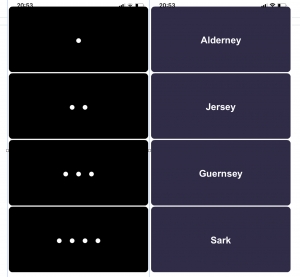
These are the sequence answer screens. Initially it will come up a screen with dots (like the one on the left) then it will change to the items you have to put in order. In this example the questions was to arrange the Channel Islands in order of size (largest to smallest). You simply touch them in the required order and your answers are locked in as you go.
Everyone who answers a question correctly will get points. The person who answers correctly first gets bonus points. The points allocated will change from round to round and game to game. The app calculates the scores so you don’t have to worry.
How to play – Troubleshooting
Beware of touching the screen until you are ready to answer. Once you have entered an answer you cannot change it.
Beware of internet lag – the stronger your wifi connection the better everything will work.
It’s probably a good idea to not have lots of other screens open on your first device, or apps open on your second device.
If you get locked out you may need to close the app and restart it … “have you tried turning it off and then back on again?”


Leave a Reply
Want to join the discussion?Feel free to contribute!